SMS Notifications
UptimeBeats can send SMS notifications so you get uptime alerts directly on your phone. SMS are sent directly from UptimeBeats using a simple SMS gateway.
Prerequisites
- An UptimeBeats account.
- At least one phone number where you want to receive alerts.
Steps to Set Up SMS Notifications (Add Your Number)
1. Open the SMS notifications settings in UptimeBeats
- Log in to your UptimeBeats account.
- Navigate to the Notifications or SMS settings section.
You should see a page where you can manage SMS recipients and send test SMS messages:
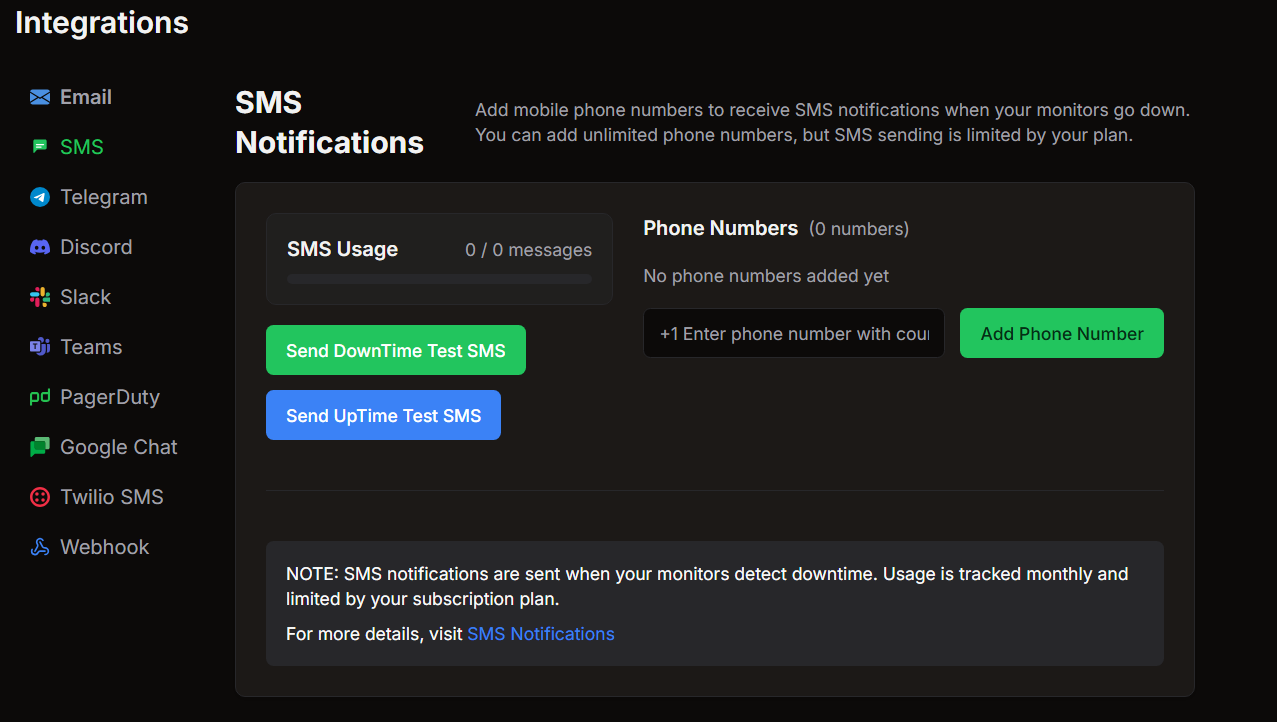
2. Add the phone number that should receive SMS alerts
- On the SMS settings page, locate the section where you can manage recipients or send a test SMS.
- Enter the phone number where you want to receive alerts, including the country code (for example,
+1XXXXXXXXXX). - Make sure the number can receive SMS messages and is active.
3. Send a test SMS
Once you have added your phone number:
- Use the test buttons on the page (for example):
- Send DownTime Test SMS
- Send UpTime Test SMS
- Check your phone to confirm that you receive the SMS message.
If you see the test SMS, your number is correctly configured, and you will receive up and down alerts when your monitors change status.
Troubleshooting
- No SMS Received:
- Ensure that the monitor in UptimeBeats is active.
- Make sure the phone number is entered correctly, including the country code.
- Confirm that your phone is able to receive SMS at that time.
- Test Buttons Not Working:
- Refresh the SMS settings page and try again.
- If the problem persists, contact support.
For Further Help
If you encounter any issues or need further assistance, feel free to contact us directly at talk@uptimebeats.com.